

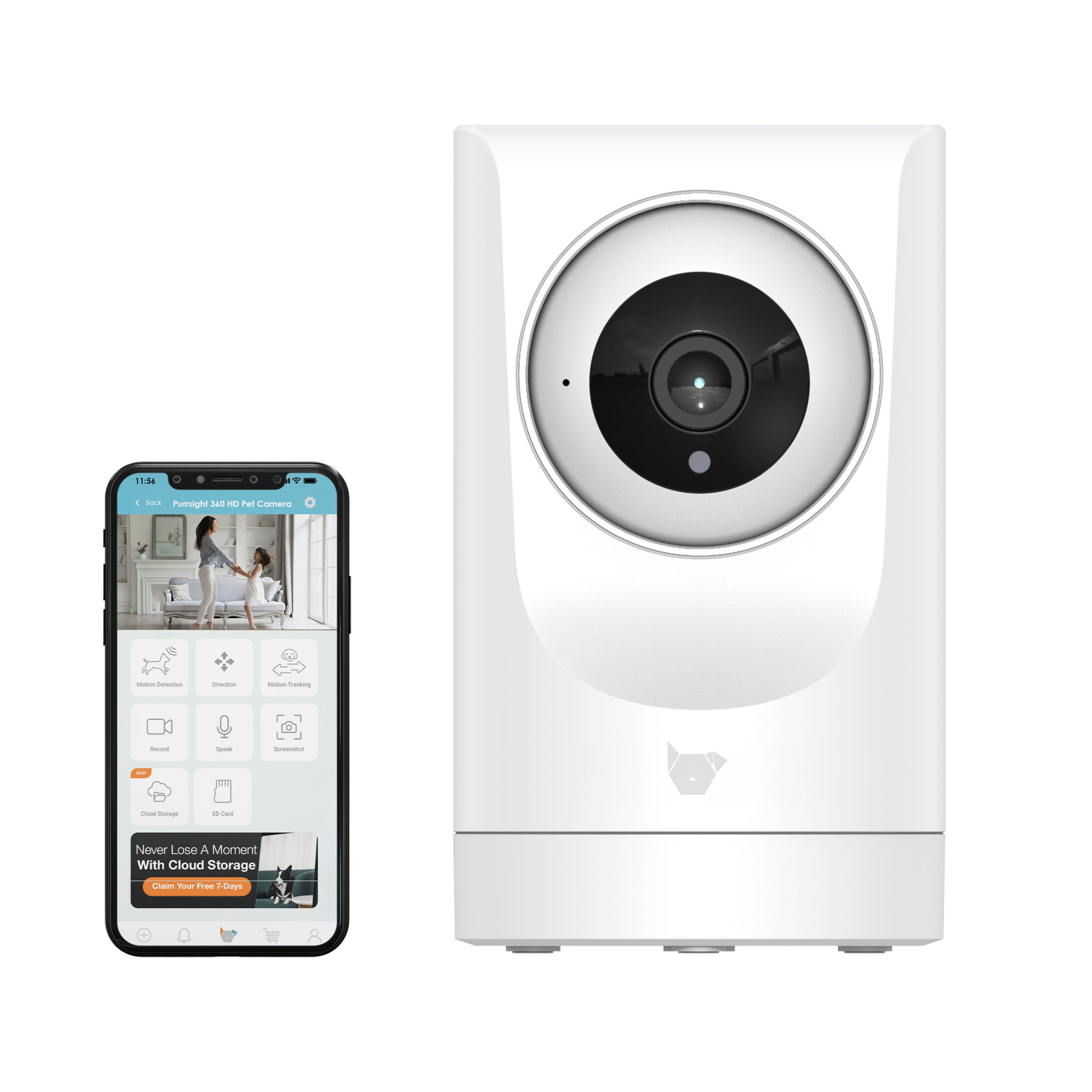
Purrsight 360° Smart App Camera with Night Vision and 2 Way Audio
Keep your home safe and secure with ease, thanks to the PurrSight 360° Smart App-Enabled Camera with Night Vision.
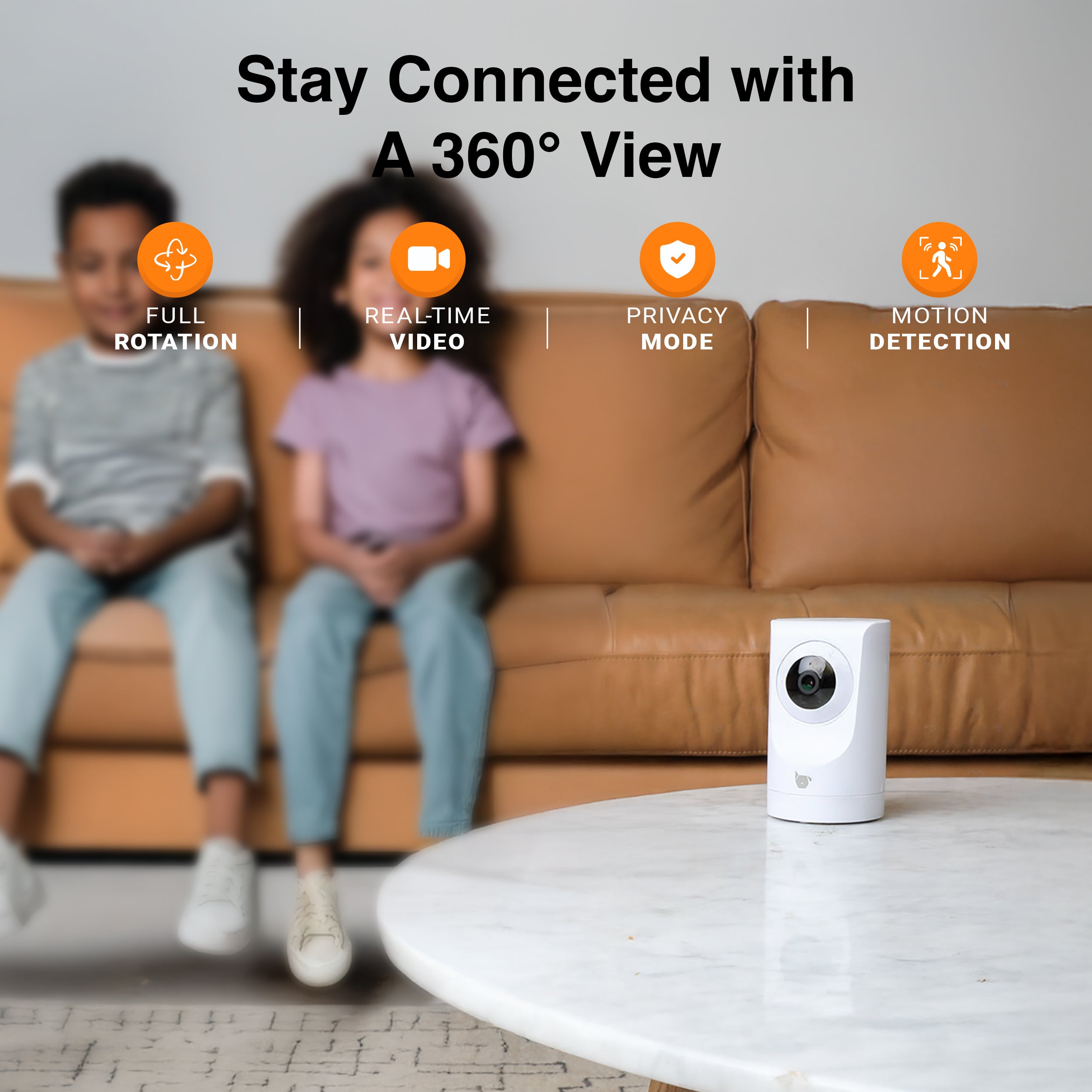
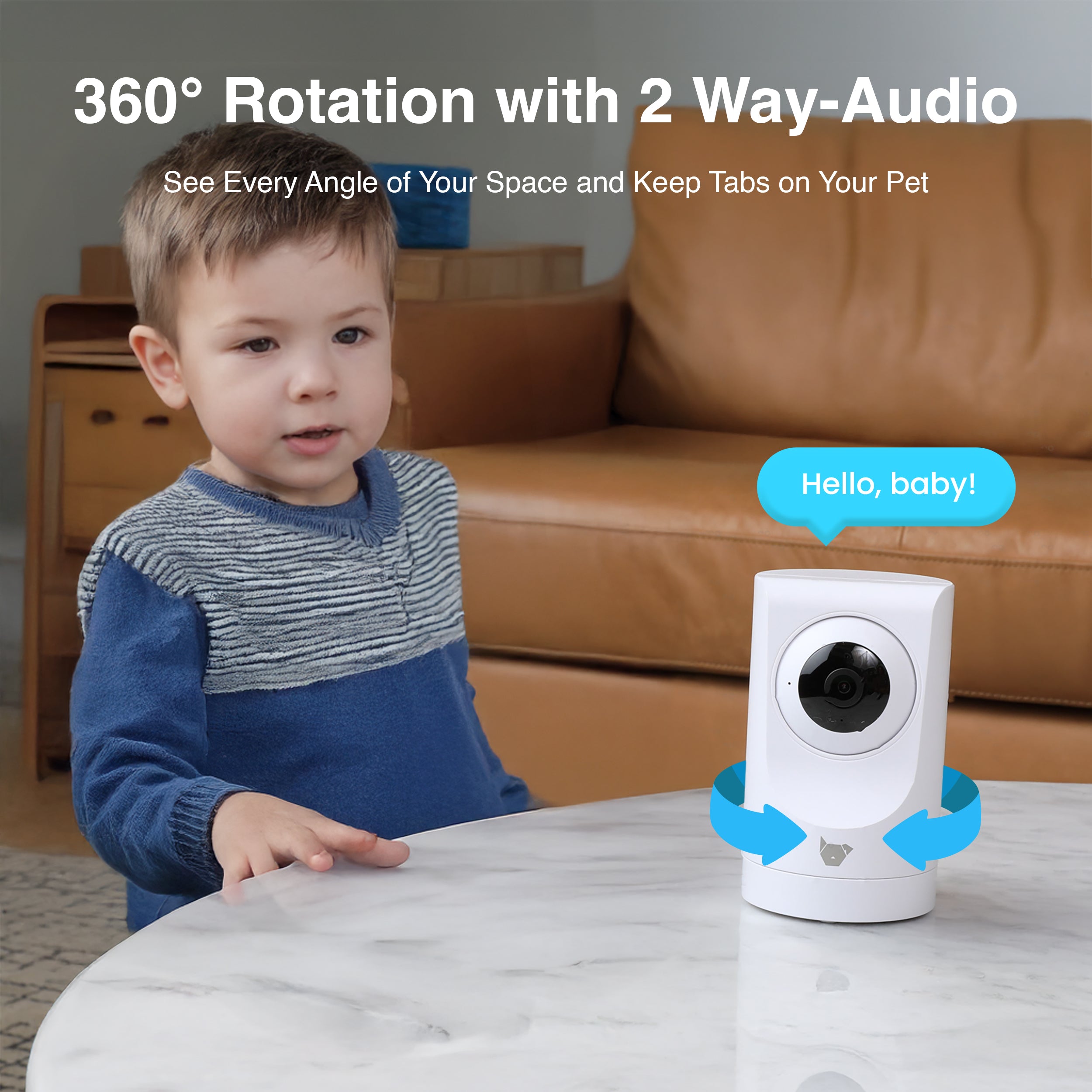
With features like 360-degree rotation, two-way audio for real-time communication, and night vision to monitor your home around the clock, this camera has you covered.
With both 2.4GHz and 5GHz compatibility, stay connected through the app no matter where you are.
It’s the perfect solution for anyone who wants extra peace of mind and reliable home monitoring. Protect your space the smart way with the PurrSight 360°!
Pairs well with
In stock! Ships within 1-2 business days.
90-day risk-free trial
2-Year Warranty
Complimentary shipping & returns
Purrsight 360° Smart App Camera with Night Vision and 2 Way Audio
If you have any questions, you are always welcome to contact us. We'll get back to you as soon as possible, within 24 hours on weekdays.
-
Shipping Information
Use this text to answer questions in as much detail as possible for your customers.
-
Customer Support
Use this text to answer questions in as much detail as possible for your customers.
-
FAQ’s
Use this text to answer questions in as much detail as possible for your customers.
-
Contact Us
Use this text to answer questions in as much detail as possible for your customers.
What Our Customers Say

360° HD Camera Coverage
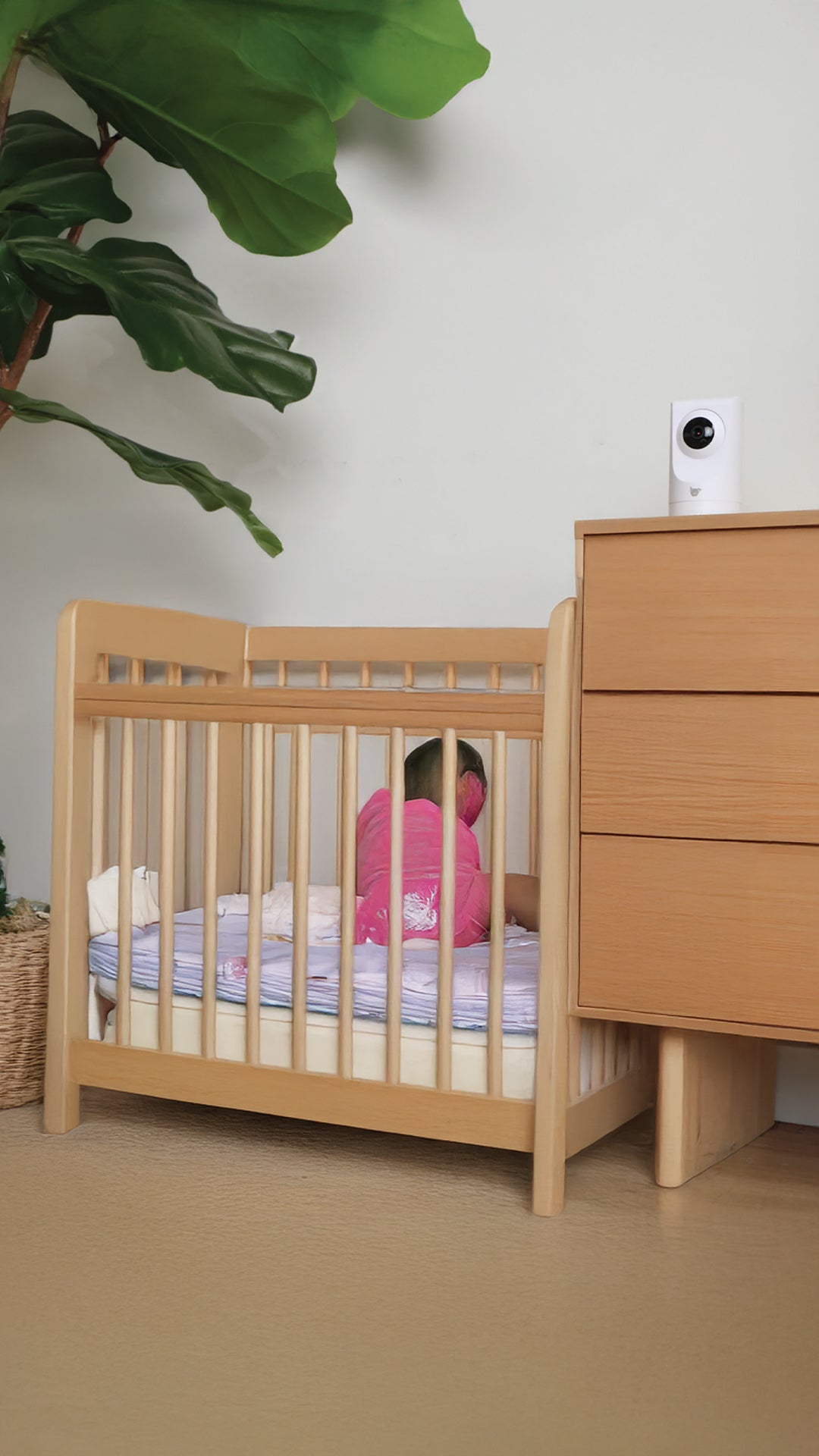
The Purrsight 360 features a HD camera with full 360° rotation, letting you monitor every corner of your home or business without missing a thing
Live Monitoring with Two Way Audio
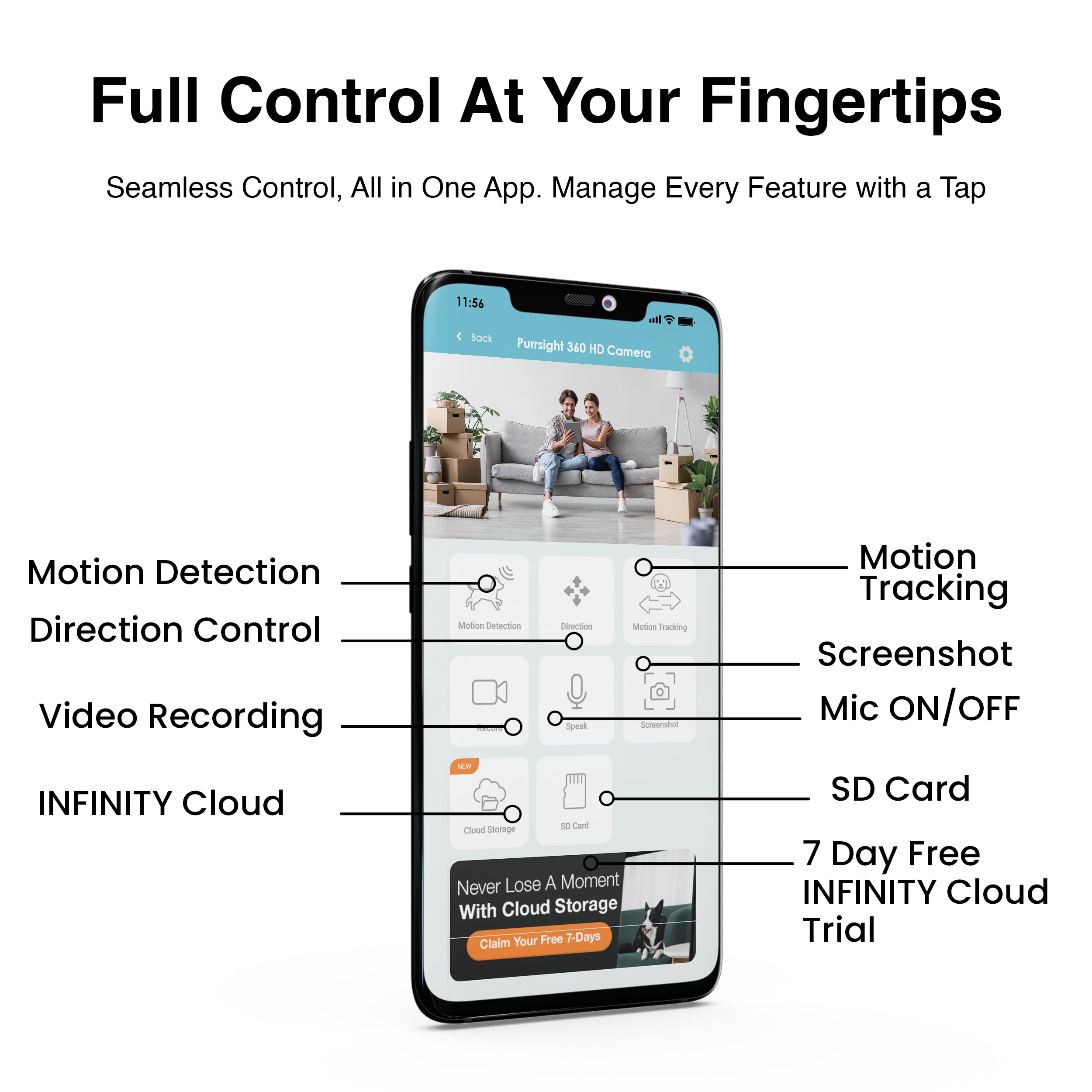
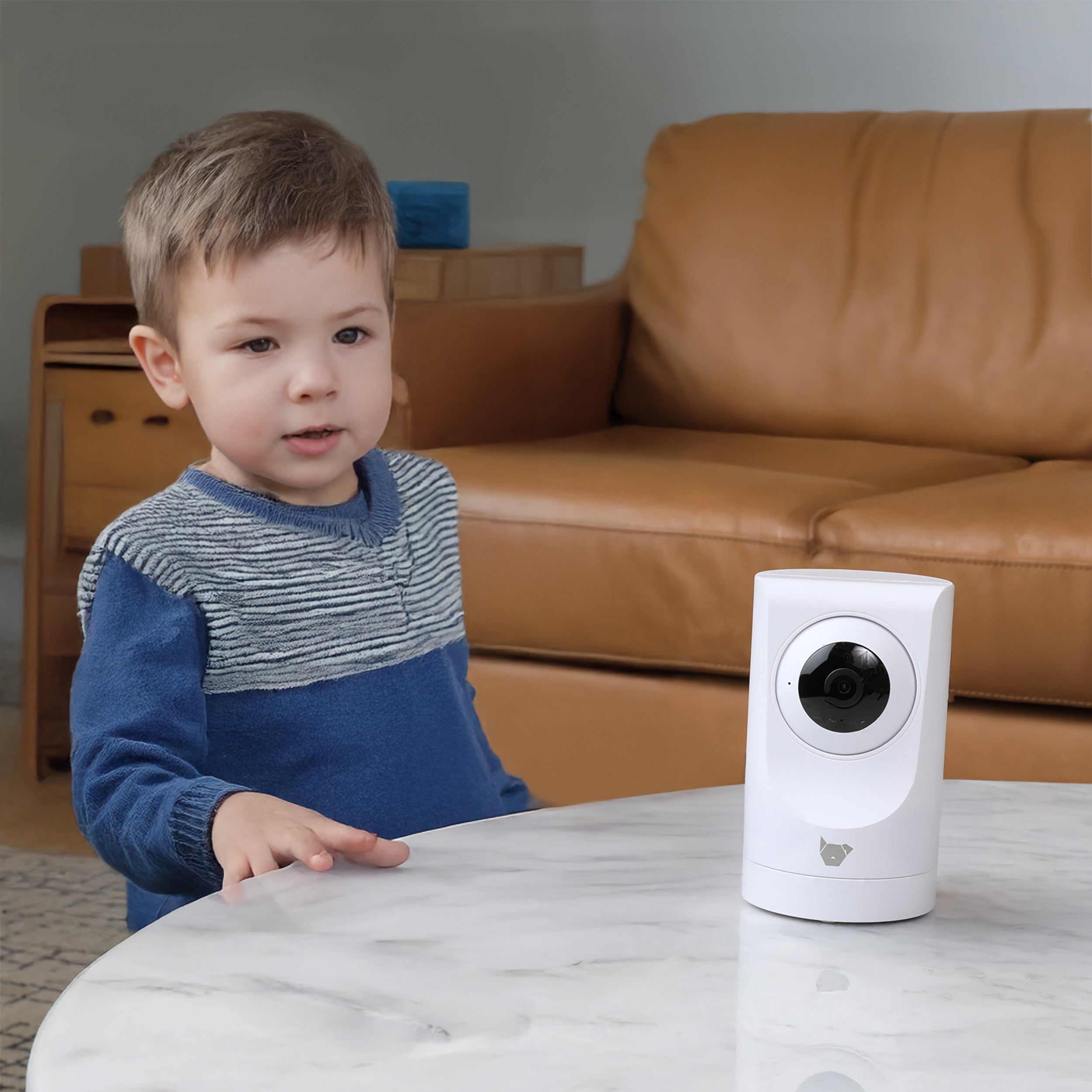
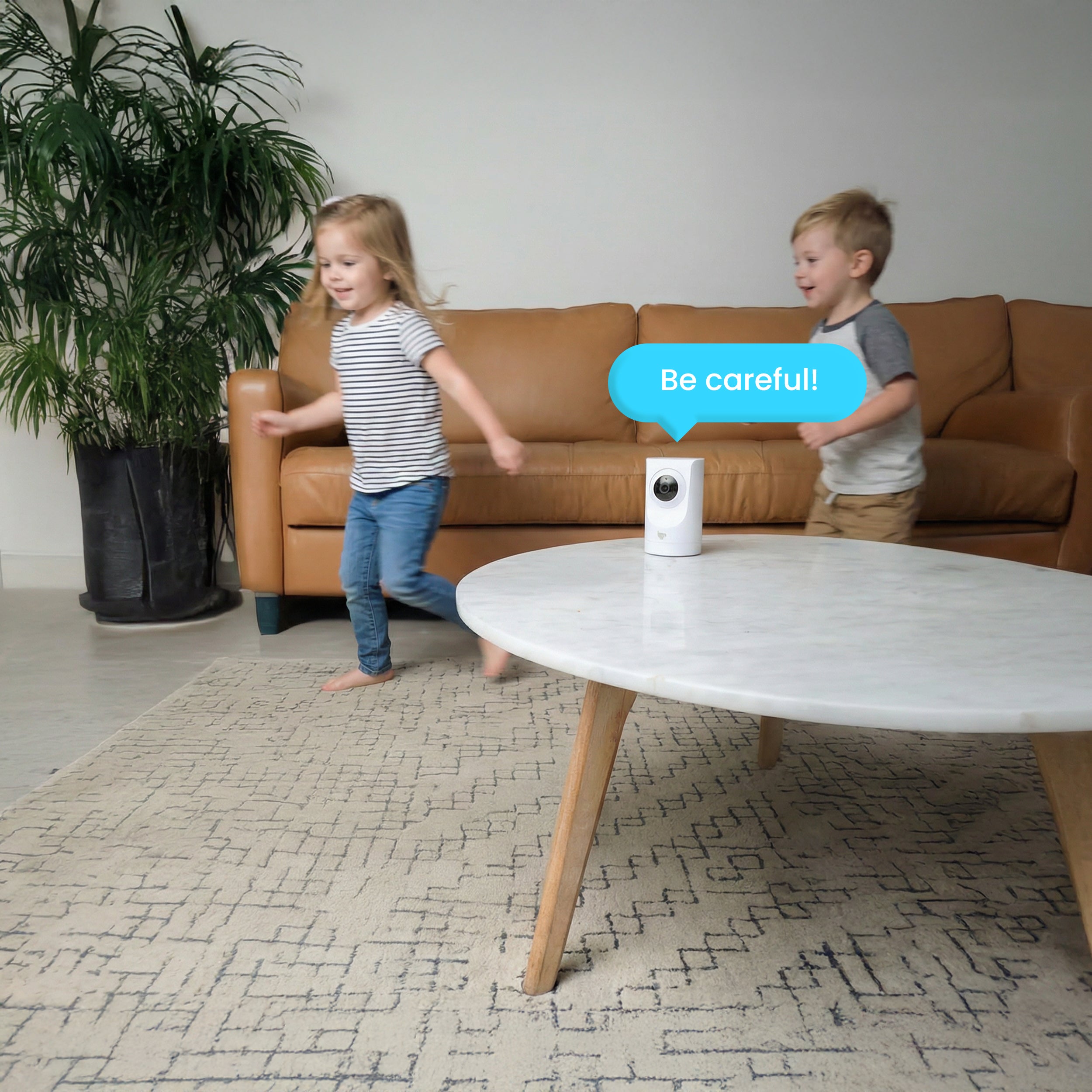
Use two-way audio to hear what’s happening and speak in real time through Purrsight 360, keeping you connected to your home or business, family via the INSTACHEW Infinity App

Night Vision for 24/7 Monitoring
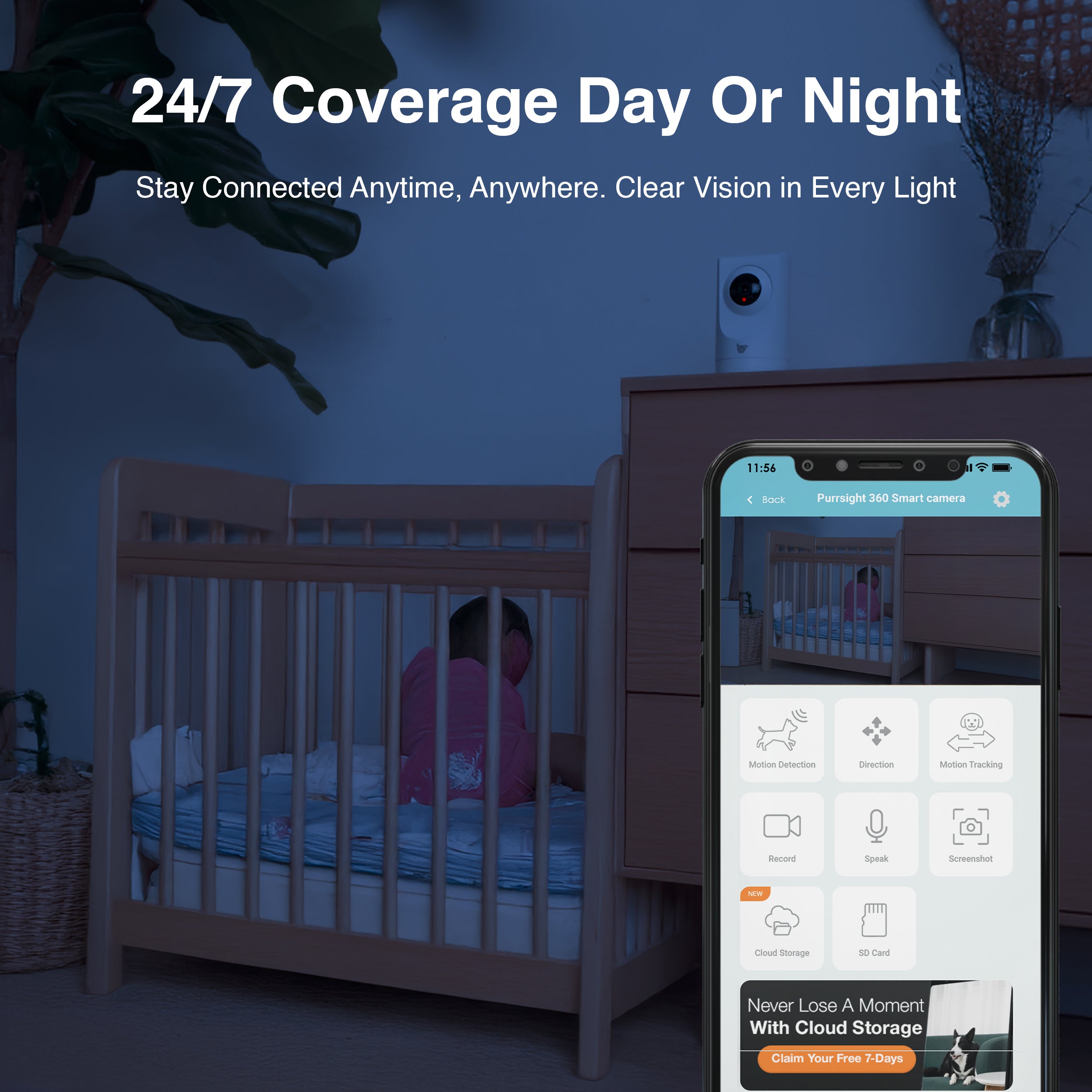
Purrsight360’s night vision delivers clear, detailed views even in complete darkness, so you can monitor your home or business anytime day or night
Stay Secure with Cloud Enabled Surveillance
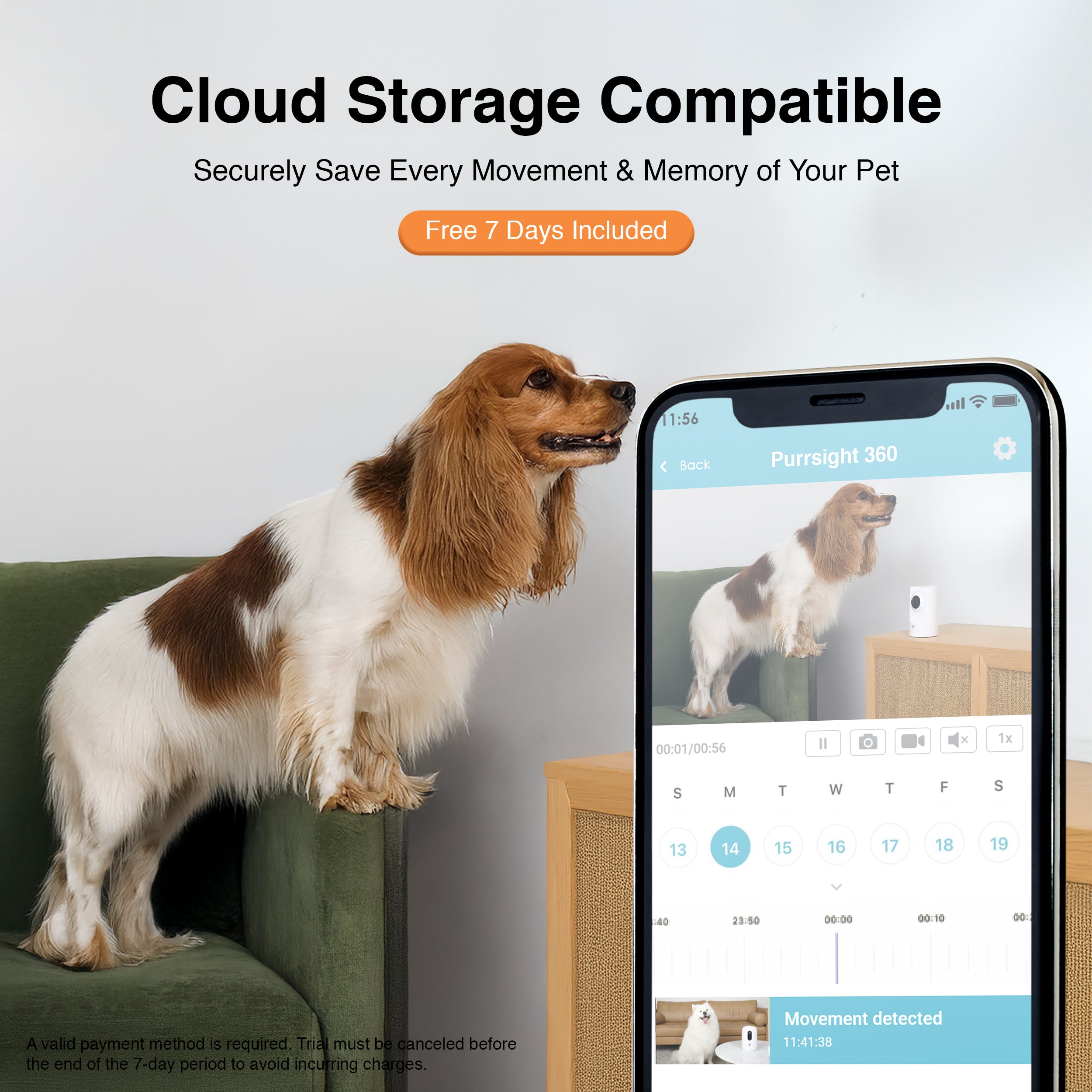
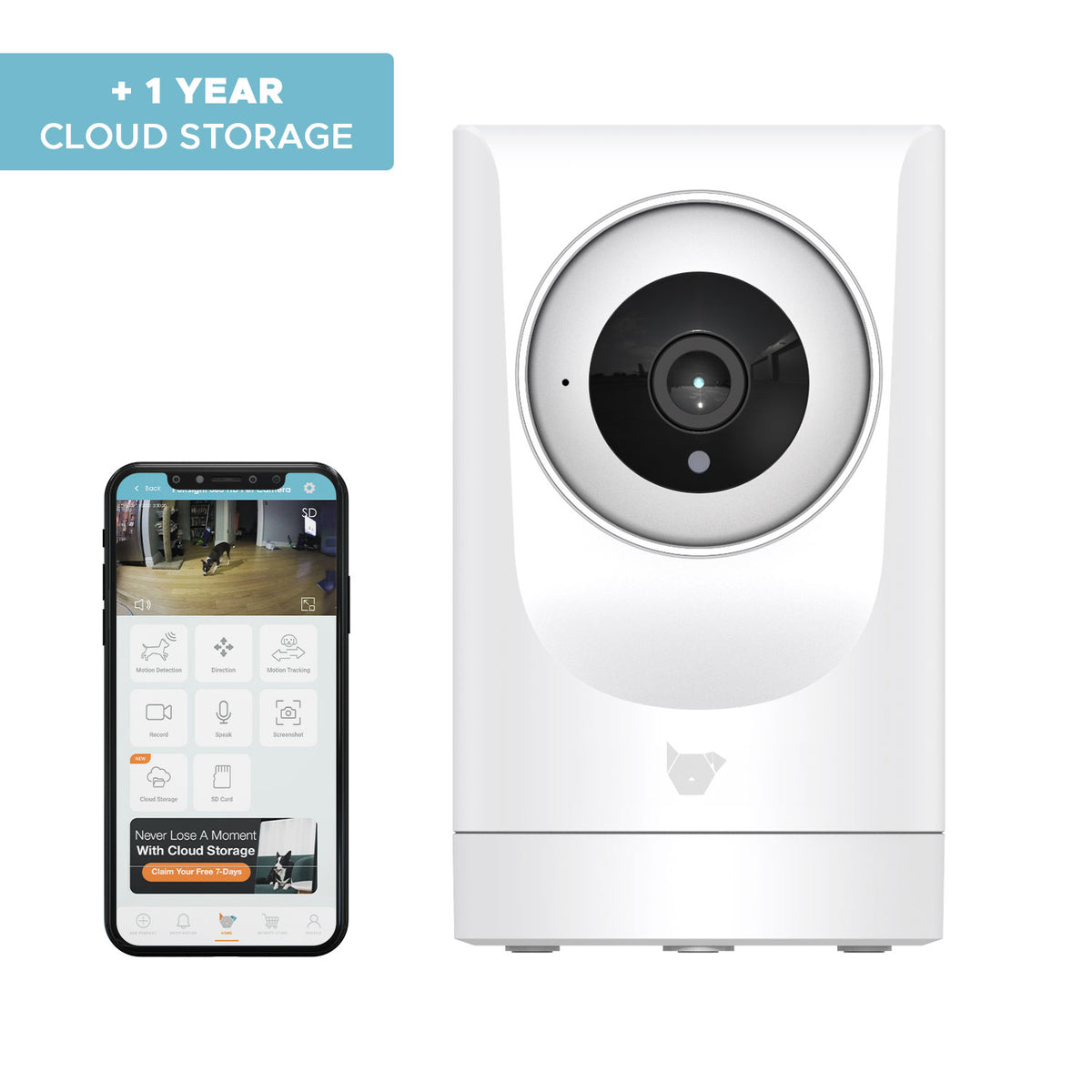
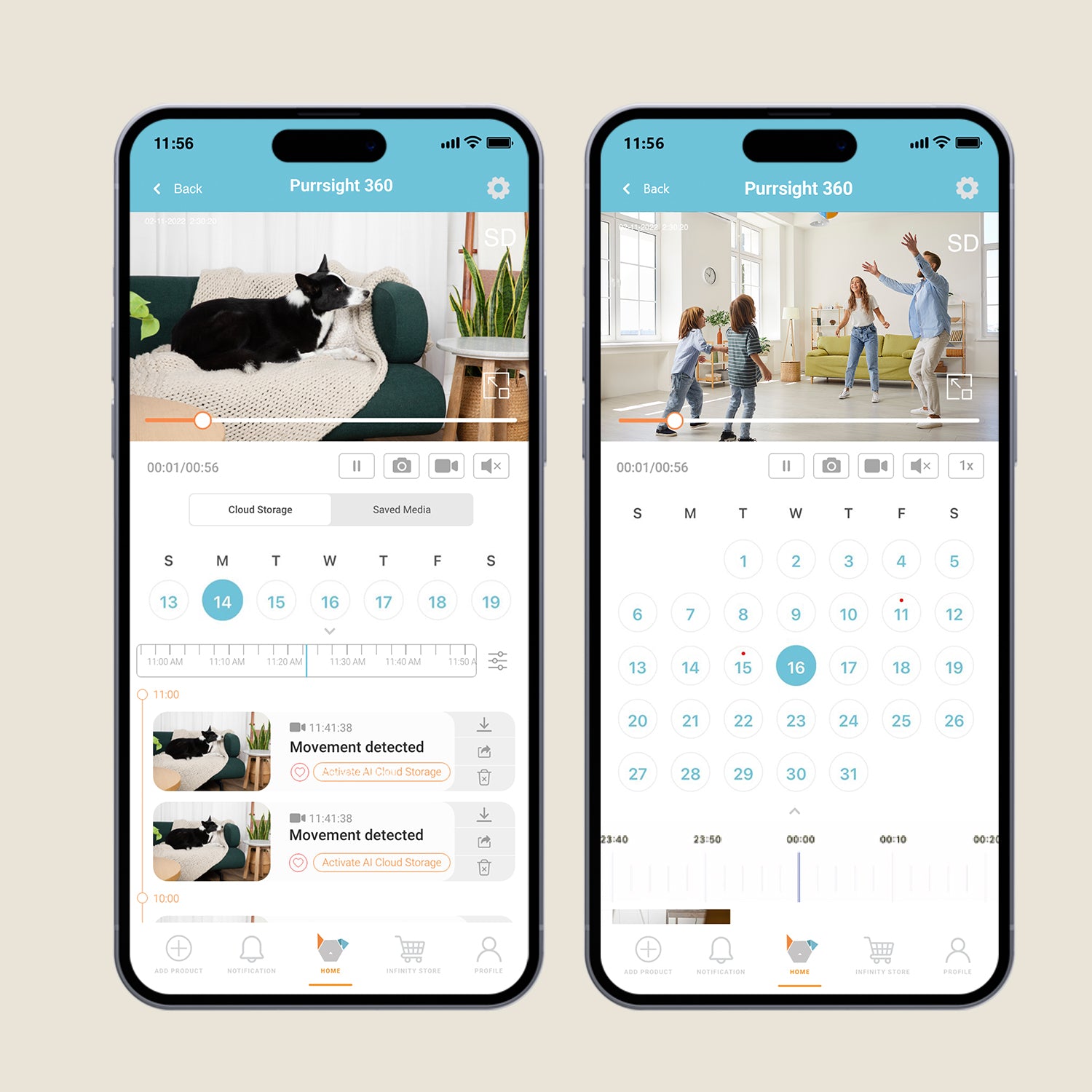
The Purrsight360 Camera comes with cloud storage support, letting you store up to 14 or 30 days of footage. Choose flexible monthly or yearly plans to effortlessly track movements and monitor your space without interruptions or worries
See Everything. Miss Nothing.
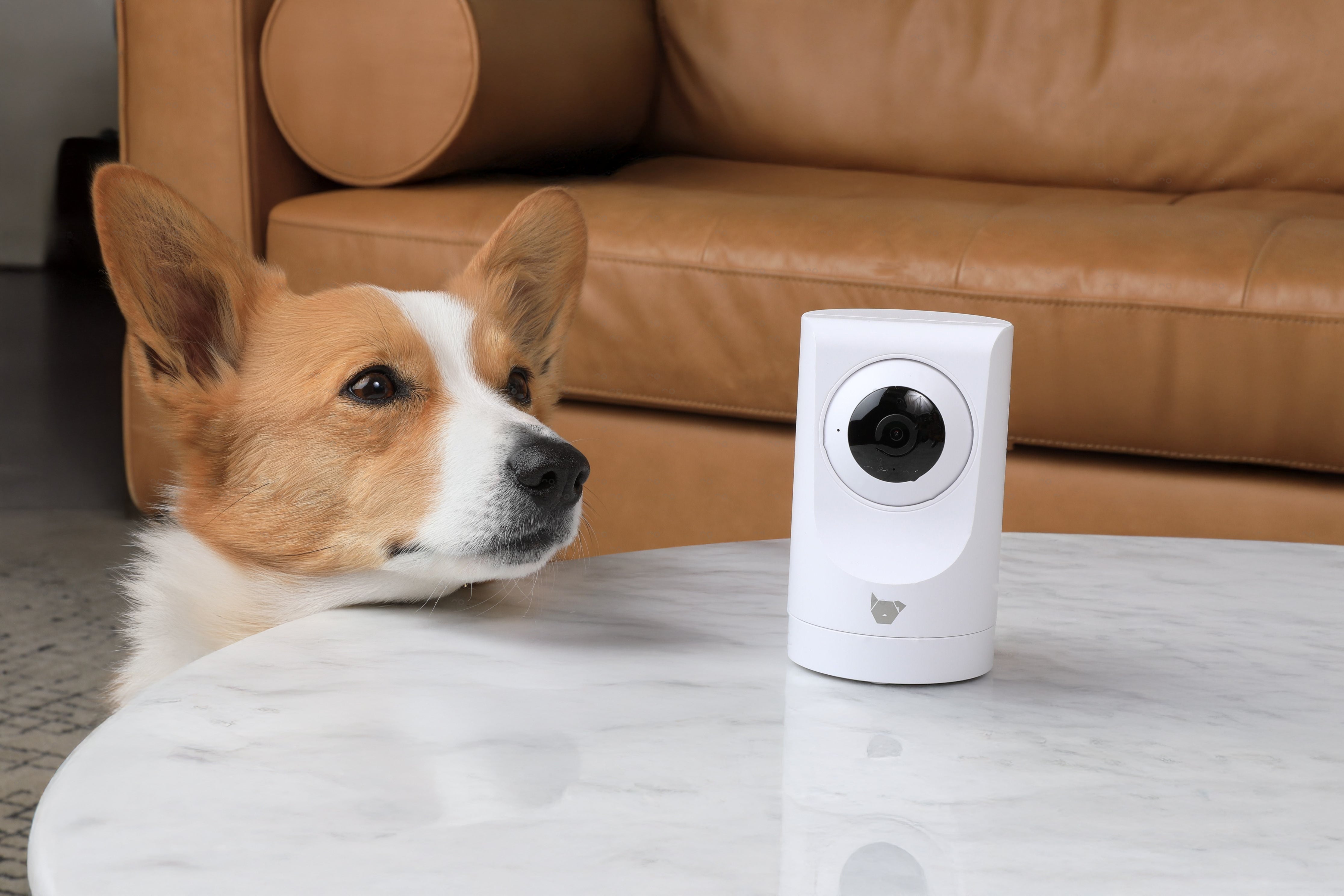
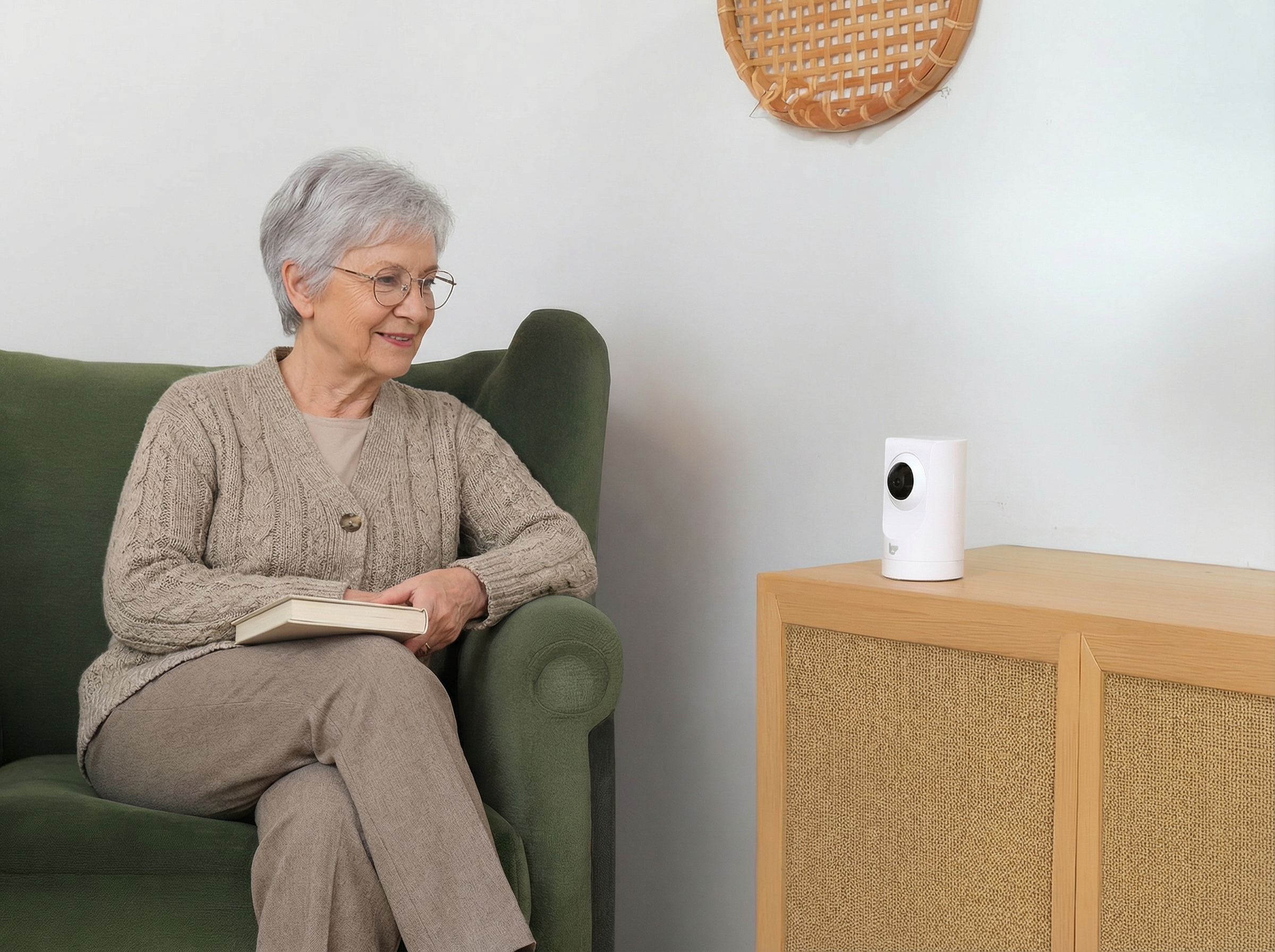
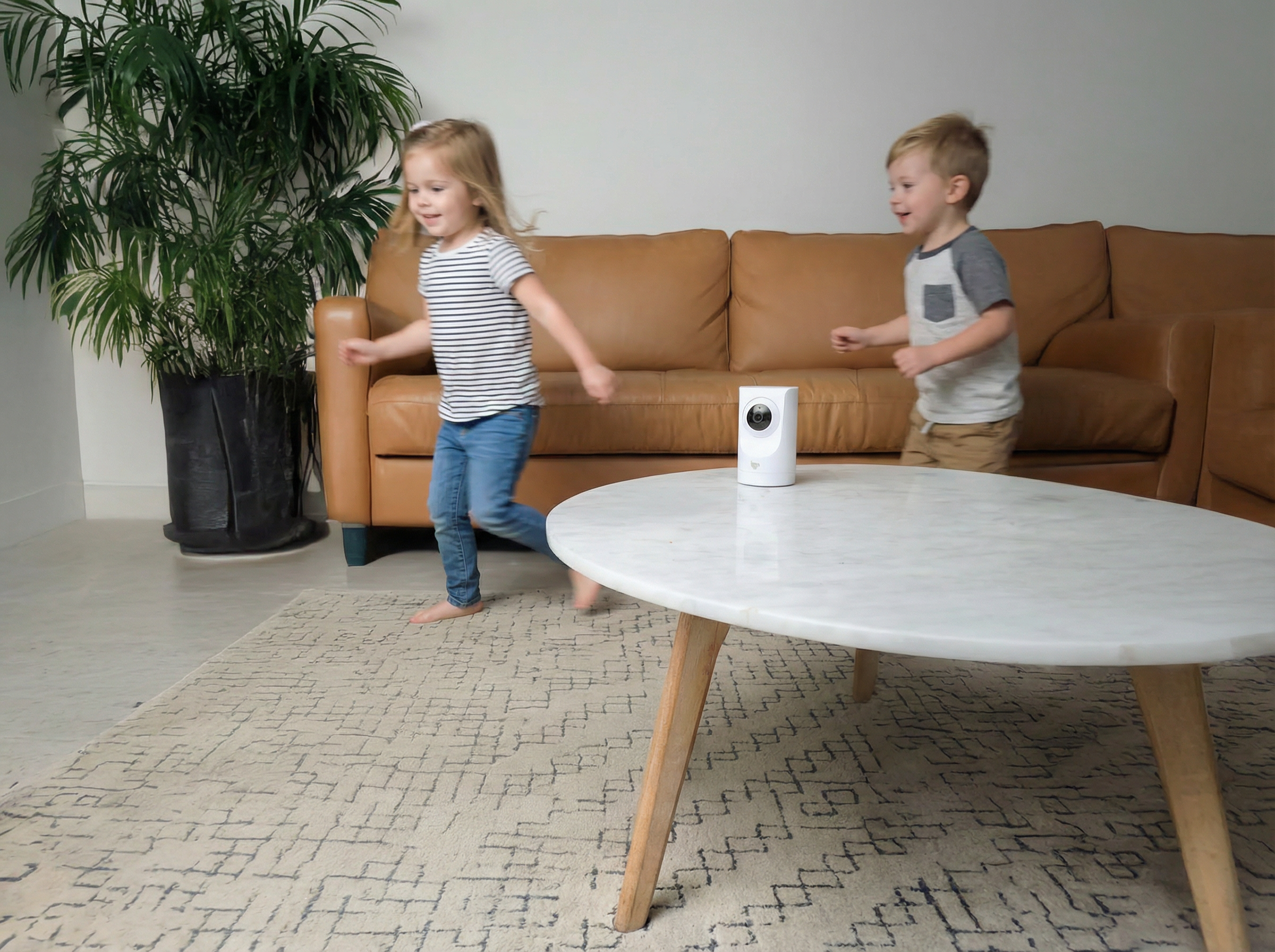
Purrsight 360 delivers complete home monitoring with smooth 360° coverage and crystal-clear video. Stay connected to every room in real time, right from your phone anytime, anywhere.
Product comparison
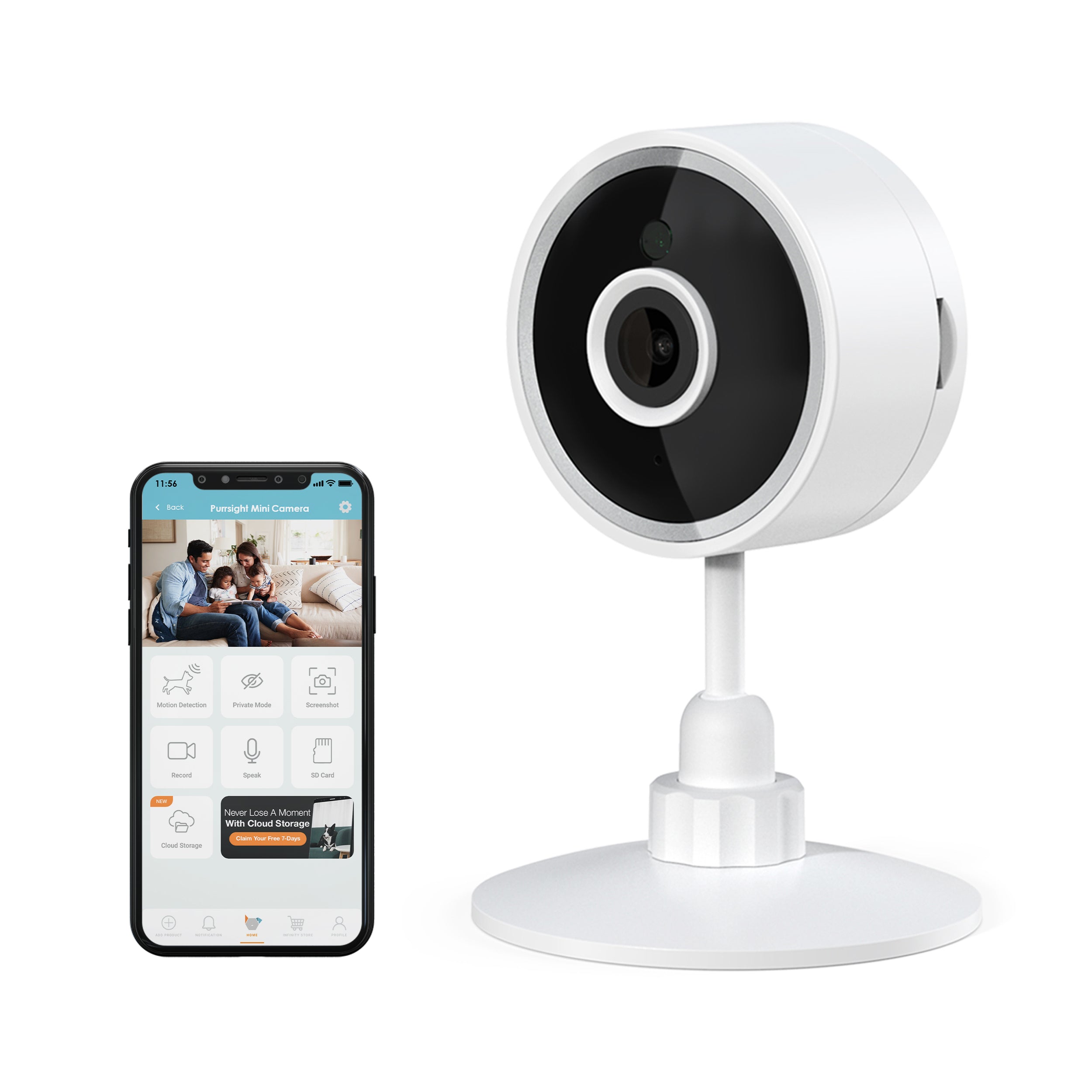
Purrsight 360° Pet Camera
Purrsight 360° Pet Camera
Connectivity
2.4 & 5 Ghz
Connectivity
2.4 & 5 Ghz
Resolution
3MP 2304*1296P
Resolution
3MP 2304*1296
Rotation
No
Rotation
355° Rotation & UP/DOWN Tilt
Microphone
Yes
Microphone
Yes
2 Way Audio
Yes
2 Way Audio
Yes
Night Vision
Yes
Night Vision
Yes
Motion Detection
Yes
Motion Detection
Yes
SD Card
Micro SD Card Supported. Up to 128GB
SD Card
Micro SD Card Supported. Up to 128GB
Auto Tracking
No
Auto Tracking
Yes. Automatically follows subject
Cloud Storage
Compatible
Cloud Storage
Compatible
FAQs
Please read our FAQs page to find out more.
Does the Purrsight360 need to be plugged in at all times to work?
It has to be plugged in at all times. It is powered by USB, so you can also use a power bank or anything that can provide power via USB for convenience.
How to insert an SD Card?
To insert the SD Card, you need to move the Camera up. To do so, please follow the instructions below:
1. Go to direction control on the INSTACHEW INFINITY App
2. Move the Camera Lens up using the direction arrows
3. Once the Camera Lens is up, the SD slot will appear
4. Before Inserting the SD Card, please unplug your Camera Lens (after it has moved up)
5. Insert your SD Card
6. Replug your Camera.
I am traveling and will bring the Purrsight360 with me. Should i create a new account?
No new accounts are required. Kindly follow the steps below:
Unbind your Puresight 360 from the Instachew Infinity App.
Once at the new location, connect to the 2.4G or 5G Wifi.
Press and hold the reset button at the back of the device and wait until the Puresight rotates.
Go through the usual setup process and use the device in the new location.
I am unable to connect my device to my Wi-Fi network
Kindly consider the things below:
Ensure that the software on your phone is up to date.
Ensure the correct application is downloaded (Instachew Infinity App).
Ensure to permit the Instachew Infinity App in your device Settings.
Ensure that you did not insert the SD card yet.
You can find this information from the options below:
- at the back of your Wi-Fi router
- Device Settings
- Call your service provider to confirm the connectivity you have
I put and SD Card in the Purrsight360, and it's not connecting.
The Purrsight 360 Camera will NOT connect if you put the SD Card in before trying to connect the device to the APP. So please ensure that there is no SD Card inside when connecting the device to the app.
How can I share the device with other users?
To share the device with other users, follow these simple steps:
1. Ask the other users to download the app from the respective app store and complete the registration process.
2. As the primary user, click on the share icon within the app.
3. The person you shared the device with should tap the shared profile or swipe left to access the device.
This will allow other users to access the device seamlessly. Happy sharing!